I've modified the blogger theme, for the 2 or 3 people who occasionally frequent this blog maybe you will notice. I originally wanted to select one of the newer themes available for blogger, but this completely messed up the text and image layout I had going. The HTML mark up of posts appears to be depended on the blog width. So I manually modified the original theme and changed a bunch of things, but primary colors and fonts. Maybe one day I will attempt to fix each post, the blogger compose mode is to blame and the way it adds images.
I also added a Links section, and will eventually add websites/resources that are related or that I frequent. I highly recommend checking out K.Mandla’s blog if you haven't already. K.Mandla is a minimalist when it comes to software and operating systems. I've been visiting the blog for a while and he updates it frequently with very informative articles about his experiences running light software and system configurations on older hardware. I agree with his philosophies about software becoming way too bloated to accomplish the same tasks, but I am not as dedicated or experienced in managing such minimal system configurations.
Tuesday, February 15, 2011

Sunday, February 13, 2011
Theme Mockups
I made a couple of desktop/theme mockups a little while ago figured I should put them here as backup.


Configure Grub2 Background Image, Resolution and Colors
Here is a method that worked for me to configure Grub2 under Debian 6.0 Squeeze.
First as root or sudo edit /etc/grub.d/05_debian_theme
Add the following somewhere near the top of the file:
menu_color_ changes the colors within the grub selection menu, while color_ changes outside the barrier. If you set black as the second color in any of the entries, for example: menu_color_normal=light-cyan/black grub will make it transparent. You can check here to see a list of available colors.
At the very bottom of 05_debian_theme add the following:
set_background_image "/path/to/your/boot/image.png" ||
set_custom_theme
Remember to select an image that is the same size as you will define in your grub boot screen resolution in the next step, save the file after you are done.
Now as root or sudo edit /etc/default/grub
You might want to modify GRUB_DEFAULT=0, this is the default boot selection, if you want another entry to boot first change it here. GRUB_TIMEOUT=5 is the default timeout before boot of the selected entry in seconds.
GRUB_GFXMODE=1024x768 sets the resolution of grub2 (I think if you add an x after resolution and a mode [e.g. 1024x768x24] you can define the color depth mode, I could be wrong), make sure the background image you set previously is the same size. Also you might want to edit GRUB_GFXPAYLOAD_LINUX=keep and also make sure it is set as =keep. This option will retain your selected resolution during the boot process.
Finally for all your changes to work, as root or sudo you must do update-grub. This will generate a /boot/grub/grub.cfg using your settings.
I honestly hate grub2, it works well for booting operating systems, but it is really disorganized, you can do things a number of ways and it doesn't always work. There is no consistency or easy way to modify everything through a single file, like in the original grub. This method worked for me but took me a while to figure out. If you set your colors under set_default_theme() in /etc/grub.d/05_debian_theme or in /etc/default/grub like a lot of people tell you to, you will discover in (At least under Debian 6.0) your /boot/grub/grub.cfg they get ignored when you have selected a background and revert to a default grey color scheme. This is why I create a custom set_custom_theme() function.
Here is my /etc/grub.d/05_debian_theme and /etc/default/grub, for reference purposes.
First as root or sudo edit /etc/grub.d/05_debian_theme
Add the following somewhere near the top of the file:
set_custom_theme(){
# Set custom color theme.
echo "${1}set menu_color_normal=light-cyan/black"
echo "${1}set menu_color_highlight=white/light-blue"
echo "${1}set color_normal=white/black"
echo "${1}set color_highlight=white/light-blue"
}
menu_color_ changes the colors within the grub selection menu, while color_ changes outside the barrier. If you set black as the second color in any of the entries, for example: menu_color_normal=light-cyan/black grub will make it transparent. You can check here to see a list of available colors.
At the very bottom of 05_debian_theme add the following:
set_background_image "/path/to/your/boot/image.png" ||
set_custom_theme
Remember to select an image that is the same size as you will define in your grub boot screen resolution in the next step, save the file after you are done.
Now as root or sudo edit /etc/default/grub
You might want to modify GRUB_DEFAULT=0, this is the default boot selection, if you want another entry to boot first change it here. GRUB_TIMEOUT=5 is the default timeout before boot of the selected entry in seconds.
GRUB_GFXMODE=1024x768 sets the resolution of grub2 (I think if you add an x after resolution and a mode [e.g. 1024x768x24] you can define the color depth mode, I could be wrong), make sure the background image you set previously is the same size. Also you might want to edit GRUB_GFXPAYLOAD_LINUX=keep and also make sure it is set as =keep. This option will retain your selected resolution during the boot process.
Finally for all your changes to work, as root or sudo you must do update-grub. This will generate a /boot/grub/grub.cfg using your settings.
I honestly hate grub2, it works well for booting operating systems, but it is really disorganized, you can do things a number of ways and it doesn't always work. There is no consistency or easy way to modify everything through a single file, like in the original grub. This method worked for me but took me a while to figure out. If you set your colors under set_default_theme() in /etc/grub.d/05_debian_theme or in /etc/default/grub like a lot of people tell you to, you will discover in (At least under Debian 6.0) your /boot/grub/grub.cfg they get ignored when you have selected a background and revert to a default grey color scheme. This is why I create a custom set_custom_theme() function.
Here is my /etc/grub.d/05_debian_theme and /etc/default/grub, for reference purposes.
AssaultCube, Quake2 and AQ2 Mods/Paks
Here is a re-release of pak files and mods I made for AssaultCube, Quake2 and Action Quake2 mod. These custom modifications change the overall appearance of the in-game hud graphics and other images for each game.
(for AssaultCube) Protox Mod: download here


(for Quake2) PrimoTurbo's Quake2 Pak: download here

(for Action Quake2) PrimoTurbo's Pro Pak: download here

(for AssaultCube) Protox Mod: download here


(for Quake2) PrimoTurbo's Quake2 Pak: download here

(for Action Quake2) PrimoTurbo's Pro Pak: download here

Generate Xorg.conf, Remove Screen Blackout and Force Resolutions
New versions of most GNU/Linux distributions do not include an xorg.conf file which defines all your hardware and especially your video driver and screen resolutions/refresh rate. I find that I still need an xorg.conf file to disable screen blacking out after a set period of time and to force resolutions and screen refresh rate. I hate that gdm by default starts at max resolution, if you define resolutions it will force gdm to use the highest one you define instead. Most people don't care about this because they are running on LCD monitors, but I still prefer a CRT on my main computer.
Generate a proper Xorg.conf in Debian 6.0 Squeeze (probablly works for most GNU/Linux distributions)
Log out and switch to console mode(Ctrl+Alt+F1) as root or sudo do:
/etc/init.d/gdm3 stop
Xorg -configure #generate a new xorg.conf file
X -config /root/xorg.conf.new #test that it works
mv /root/xorg.conf.new /etc/X11/xorg.conf #move xorg.conf
nano /etc/X11/xorg.conf #edit with nano or editor of your choice
once your done editing do CTRL+O to save and CTRL+X to quit nano. You can now restart.
Or try /etc/init.d/gdm3 start and then startx
To remove/modify screen blank/black out:
Edit your xorg.conf as root/sudo
Between Section "ServerLayout" & EndSection add:
To define custom resolutions/refresh rate:
In xorg.conf:
Edit between Section "Screen" SubSection "Display" and EndSubSection EndSection
Mine looks like this:
Generate a proper Xorg.conf in Debian 6.0 Squeeze (probablly works for most GNU/Linux distributions)
Log out and switch to console mode(Ctrl+Alt+F1) as root or sudo do:
/etc/init.d/gdm3 stop
Xorg -configure #generate a new xorg.conf file
X -config /root/xorg.conf.new #test that it works
mv /root/xorg.conf.new /etc/X11/xorg.conf #move xorg.conf
nano /etc/X11/xorg.conf #edit with nano or editor of your choice
once your done editing do CTRL+O to save and CTRL+X to quit nano. You can now restart.
Or try /etc/init.d/gdm3 start and then startx
To remove/modify screen blank/black out:
Edit your xorg.conf as root/sudo
Between Section "ServerLayout" & EndSection add:
Option "BlankTime" "0"Also make sure you have Option "DPMS" between Section "Monitor" & End Section.
Option "StandbyTime" "0"
Option "SuspendTime" "0"
Option "OffTime" "0"
To define custom resolutions/refresh rate:
In xorg.conf:
Edit between Section "Screen" SubSection "Display" and EndSubSection EndSection
Mine looks like this:
Section "Screen"I am not sure why but I find that Depth 24 limits my refresh rate to 85Hz, which is what I prefer. If I try Depth 32 it makes my max resolution 1600x1200 even when I define 1280x1024 as max. I can't explain it but for some reason this odd behavior occurs, so 24 is what I use and I remove all other depths to prevent lower refresh rates. Here is my full xorg.conf as reference/guideline. I hope this can help someone.
Identifier "Screen0"
Device "Card0"
Monitor "Monitor0"
SubSection "Display"
Viewport 0 0
Depth 24
Modes "1280x1024" "1024x768" "800x600" "640x480"
EndSubSection
EndSection
Changing GDM3 Theme and Wallpaper
Here is a quick hack for GDM3 to change the GTK controls and wallpaper/background image. This won't change the overall design/layout.
edit /etc/gdm3/greeter.gconf-defaults with a text editor as root or sudo.
Uncomment and edit the following lines by removing the # character.
Then as root/sudo run dpkg-reconfigure gdm3
edit /etc/gdm3/greeter.gconf-defaults with a text editor as root or sudo.
Uncomment and edit the following lines by removing the # character.
/desktop/gnome/background/picture_filename /path/wallpaper.png
/desktop/gnome/interface/gtk_theme AuroraSet the path to your background image on the picture_filename line. Set the GTK theme you want to use at the gtk_theme line. Make sure it is something valid that you have installed like Clearlooks or in my case Aurora. Also it's best to keep the background image the same size as your gdm3 resolution.
Then as root/sudo run dpkg-reconfigure gdm3
Fix Slow Warcraft3 Performance in Wine

Warcrat3 is one of my favorite games, I especially like to play custom maps like Legion TD, Battleships, Island Defense, Burbenog TD, Gem TD, Zoator TD, Jurassic Park Survival, Green Circle TD, Dota and tons of others. It's amazing that a small custom map file can completely change the game into something else. People have become incredibly creative in making custom games for Warcraft and there is still a huge player base despite the age of the game (RoC released in 2002 and TFT Expansion in 2003). Without some tweaks Warcraft3 runs very sluggish, poorly, slow and laggy under wine. The good news is there is an easy solution.
First install wine, then run through the normal install of Warcraft3 RoC & TFT using wine. After you are done you will need to patch the game, at the moment the latest patch is version 1.24e which you can download here (for either Reign of Chaos or Frozen Throne). It also appears that the newer patches automatically include a nocd which allow you to play the game without having the game cd in the drive, run the patch through wine and let it install.
Fix game crash/freeze at start:
I have found that if you don't remove/rename the included movies, especially the intro movies the game will not properly start as wine is unable to play them. If you go into /home/yourusername/.wine/drive_c/Program Files/Warcraft III/Movies, you can delete them to make the game start/work.
Getting rid of slow performance:
Open a terminal and run wine regedit. Go into HKEY_CURRENT_USER/Software/Blizzard Entertainment/Warcraft III/, right click and create a new DWORD Value with the name Gfx OpenGL, double click it and set the Value data: to 1 as a Base of Hexadecimal. Type: should show REG_DWORD and Data: should be 0x00000001 (1) in regedit. If you go into HKEY_CURRENT_USER/Software/Blizzard Entertainment/Warcraft III/Video you can also set your game refresh rate by modifying the refreshrate DWORD key, also change the cinematicrefresh DWORD key to the same value. The Base for both should be in Decimal. Also if you want you might want to add -opengl to your Warcraft3 launch shortcut, something like env WINEPREFIX="/home/yourusername/.wine" wine "C:\Program Files\Warcraft III\Frozen Throne.exe" -opengl, but I have found that this is not nessesary once you create a Gfx OpenGL DWORD.
Setting proper resolution:
Start winecfg, under Applications tab add application and add Frozen Throne.exe and Warcraft III.exe (if you play the default RoC game). Now make sure the exe is selected and switch to Graphics tab. At this point I select Allow DirectX apps to stop mouse leaving their window & Emulate a virtual desktop. You want your virtual desktop to be the same size as your default resolution, mine is set at 1280x1024. You also want your Warcraft3 game to be the same resolution or otherwise this will create empty space. If you do this correctly you will be able to alt-tab very quickly without switching resolutions. Useful for checking youtube while you wait for a custom game to fill.
Let me know if this worked for anyone else, also you can reduce in-game quality through the game's options, I keep my settings on medium to high and it runs great with this tweak. Furthermore make sure you have an adequate driver installed for your video card.
February Debian Squeeze
Here is my current desktop, running Debian 6.0 Squeeze.

GTK: Aurora
Metacity: Clear-Elementary
Icons: Faenza
Not sure of the source/name of wallpaper.

GTK: Aurora
Metacity: Clear-Elementary
Icons: Faenza
Not sure of the source/name of wallpaper.
Debian Space Wallpapers
EDIT: I've changed the 2560x1600 resolutions to point to my deviantART page, appears that blogger resizes very large images.
I recently made some space based wallpapers for Debian.
Debian Planet
2560x1600

1600x1200

Debian Vortex
2560x1600

1600x1200

I've also posted them on the Debian User Forums, here and here.
I might make more Debian space related wallpapers and re-release everything with a bunch of different sizes, but for now just use an image program like GIMP to resize/recut the wallpapers for your screensize or center/scale them. The new official Space Fun theme for Debian 6.0 Squeeze is not to my taste, looks very childish to be honest. To each their own I guess, but I do wish they chose something different like Debian Ciel.
I recently made some space based wallpapers for Debian.
Debian Planet
2560x1600
1600x1200

Debian Vortex
2560x1600
1600x1200

I've also posted them on the Debian User Forums, here and here.
I might make more Debian space related wallpapers and re-release everything with a bunch of different sizes, but for now just use an image program like GIMP to resize/recut the wallpapers for your screensize or center/scale them. The new official Space Fun theme for Debian 6.0 Squeeze is not to my taste, looks very childish to be honest. To each their own I guess, but I do wish they chose something different like Debian Ciel.
Fixing Firefox/Iceweasel icons
I haven't updated in over a year, but I recently installed Debian 6.0 Squeeze and began messing with Linux again on my main computer. I figured I'll make this post because I just overcame a huge nuisance in Firefox/Iceweasel (I'll call it Firefox from this point on even if I am using Iceweasel since it's technically a re-branded version of Firefox due to logo trademarks that Debian does not follow).
The problem has to do with some of the default Tango icons that appear in Firefox no matter what you do to replace them. A while ago Firefox began integrating GTK theme icons into its interface, however as I have learned many of the icons Firefox uses are coming from a classic.jar file elsewhere on the system. Even if the icon themes have the proper icons.
For example if you use the excellent Faenza theme like I do, you'll soon discover that it includes tab-new.png under actions (which is symbolically linked by tab_new.png stock_new-tab.png) but if you use the tab icon from the customize menu (because you like it there, and hate your tab button moving places with new tabs being open) you'll realize that it is not replaced. There a number of icons that are like this, including bookmark icons, go button, search icon, popup icon etc. This is stupid and brakes the fluidity of your theme, which is horrible if you seek consistency.
Here is how the broken wrong icons look. Notice the default Tango icons used instead of the theme icons? The new tab icon, the go button and the search icon.

The Fix!
You will need to go into /usr/share/firefox/chrome (replace firefox with iceweasel if using Debian, keep in mind your firefox directory might be different so search around) and find classic.jar, you then need to unzip this file somewhere, and go into /skin/classic/browser. There you will find various png files that contain these icons. I have edited Toolbar.png, Go-arrow.png, Search-glass.png and replaced the icons from Faenza, a lot of the icons used are 16x16 pixels but not all. This is the only way to change these icons as far as I can tell to reflect your theme icons. Unless someone has made a specific firefox theme for your icon set, but even that doesn't work all the time.
After your finished editing these images, you will need to create a zip file(make sure you use .zip, unless you can create .jar) and rename it to classic.jar (jar is mostly a java zip file container). Make sure to preserve the original file structure and names in the modified jar file. Backup the original classic.jar in /usr/share/firefox/chrome and place with your own version, ALSO keep a version of your custom classic.jar elsewhere, in case a system update replaces it, so you don't have to redo everything from scratch.
Here are the fixed icons.

Yes it's a pain to do it, but until this is fixed and you want your custom icons you will have to do it manually. Enjoy.
The problem has to do with some of the default Tango icons that appear in Firefox no matter what you do to replace them. A while ago Firefox began integrating GTK theme icons into its interface, however as I have learned many of the icons Firefox uses are coming from a classic.jar file elsewhere on the system. Even if the icon themes have the proper icons.
For example if you use the excellent Faenza theme like I do, you'll soon discover that it includes tab-new.png under actions (which is symbolically linked by tab_new.png stock_new-tab.png) but if you use the tab icon from the customize menu (because you like it there, and hate your tab button moving places with new tabs being open) you'll realize that it is not replaced. There a number of icons that are like this, including bookmark icons, go button, search icon, popup icon etc. This is stupid and brakes the fluidity of your theme, which is horrible if you seek consistency.
Here is how the broken wrong icons look. Notice the default Tango icons used instead of the theme icons? The new tab icon, the go button and the search icon.

The Fix!
You will need to go into /usr/share/firefox/chrome (replace firefox with iceweasel if using Debian, keep in mind your firefox directory might be different so search around) and find classic.jar, you then need to unzip this file somewhere, and go into /skin/classic/browser. There you will find various png files that contain these icons. I have edited Toolbar.png, Go-arrow.png, Search-glass.png and replaced the icons from Faenza, a lot of the icons used are 16x16 pixels but not all. This is the only way to change these icons as far as I can tell to reflect your theme icons. Unless someone has made a specific firefox theme for your icon set, but even that doesn't work all the time.
After your finished editing these images, you will need to create a zip file(make sure you use .zip, unless you can create .jar) and rename it to classic.jar (jar is mostly a java zip file container). Make sure to preserve the original file structure and names in the modified jar file. Backup the original classic.jar in /usr/share/firefox/chrome and place with your own version, ALSO keep a version of your custom classic.jar elsewhere, in case a system update replaces it, so you don't have to redo everything from scratch.
Here are the fixed icons.

Yes it's a pain to do it, but until this is fixed and you want your custom icons you will have to do it manually. Enjoy.
Sunday, January 31, 2010
Openbox, ADeskBar, LXPanel


Here is my current setup for my laptop. Arch Linux, Openbox, ADeskBar on the left (start/menu button, firefox, thunar, terminal, minimize all windows) and LXPanel with SlicknesS Black GTK theme on the right. I used a custom background for the panels and positioned them very accurately to make them appear and function as a single taskbar.
I used Token icon theme by ~brev as a basis to make the custom panel icons, it includes a PSD file which can be used to apply layer effects to your icons.
I'm using xdotool for the menu to start the openbox menu on clicking the start button icon. Here is a detailed tutorial of how it basically works.
GTK Theme is Murrine-Colors Brave, Openbox theme a slightly modified version of my Dark Fiber openbox theme, icons are Elementary.
Sunday, March 1, 2009
Using an Old System
So I've been messing with Arch on my old Compaq Deskpro EN with a Pentium 3 733MHz, 256 SDRAM, Voodoo3 2000 PCI 16Mb, and a 40GB hard drive. I must say it is a very responsive and usable system. It runs firefox with out any problems and even youtube with flash, as long as I keep flash videos their default size it runs them smoothly like any modern computer even most high definition content on youtube runs perfect.
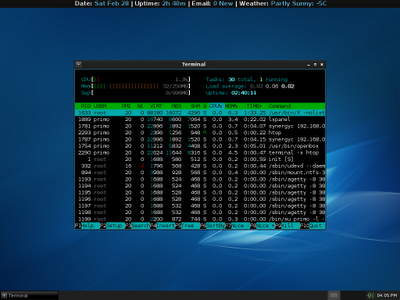
Here is htop, very little ram is being used. Despite the fact that I have synergy, nitrogen, openbox, lxpanel, conky, terminal & X running.
Here is a video from youtube in HD, running perfectly fine. Ofcourse fullscreen is beyond what this system can do with flash. But it can play regular divx and xvid videos with no problem, fullscreen or not.

29 seconds. The default boot on Arch, no optimization.

25 seconds. I saved 4 seconds, by simply loading all the modules in the background. The system was completely functional by the time X started anyways, 2 seconds later.

20 seconds. I recompiled the kernel, by using this kernel. Basically removing everything not needed and setting the kernel specifically for a Pentium 3. I did not spend too much time going over each option, so there is A LOT more optimization I can with the kernel configuration.

Here is the .config file I used for the custom kernel in case anyone wants to reference it.
Here is htop, very little ram is being used. Despite the fact that I have synergy, nitrogen, openbox, lxpanel, conky, terminal & X running.

Here is a video from youtube in HD, running perfectly fine. Ofcourse fullscreen is beyond what this system can do with flash. But it can play regular divx and xvid videos with no problem, fullscreen or not.

29 seconds. The default boot on Arch, no optimization.

25 seconds. I saved 4 seconds, by simply loading all the modules in the background. The system was completely functional by the time X started anyways, 2 seconds later.

20 seconds. I recompiled the kernel, by using this kernel. Basically removing everything not needed and setting the kernel specifically for a Pentium 3. I did not spend too much time going over each option, so there is A LOT more optimization I can with the kernel configuration.

Here is the .config file I used for the custom kernel in case anyone wants to reference it.
Sunday, February 22, 2009
DarkFiber Openbox Theme
Sorry for the lack of updates I have been a bit lazy and busy with work and school. I've been messing with an old Pentium 3 (730Mhz, 256 SDRAM, 40GB Hard Drive) system and decided to create another openbox theme.
I call it DarkFiber, I used the popular Onyx theme as the bases.

I'm using a slightly edited Clearlooks Colors (Clearlooks Brave) theme. I also have lxpanel at the bottom which is being started with a separate edited SlicknesS-black theme. This is how you do it:
Icons are my favorite Eikon theme, conky is similar to my regular setup which can be found further down on this blog with edited colors. Wallpaper is Aerostream. Sorry to lazy to find links for each one but you should be able to find everything quite easily.
I call it DarkFiber, I used the popular Onyx theme as the bases.

I'm using a slightly edited Clearlooks Colors (Clearlooks Brave) theme. I also have lxpanel at the bottom which is being started with a separate edited SlicknesS-black theme. This is how you do it:
GTK2_RC_FILES=/home/username/.themes/SlicknesS-black/gtk-2.0/gtkrc lxpanelor
bash -c 'GTK2_RC_FILES=/home/username/.themes/SlicknesS-black/gtk-2.0/gtkrc lxpanel'If you want to start it from gmrun or openbox menu.
Icons are my favorite Eikon theme, conky is similar to my regular setup which can be found further down on this blog with edited colors. Wallpaper is Aerostream. Sorry to lazy to find links for each one but you should be able to find everything quite easily.
Thursday, June 26, 2008
Software for Linux
Here is a list of Linux applications that I personally use on my openbox setup. I highly recommend every single application listed here, I also took the liberty of taking a screenshot of each application running on my computer. Most of the applications are found in Ubuntu's repos, just do a search otherwise you will need to find a deb or compile.
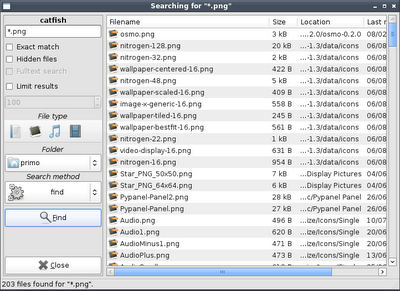
Catfish - A great search utility. I find it's better then the one Gnome uses.
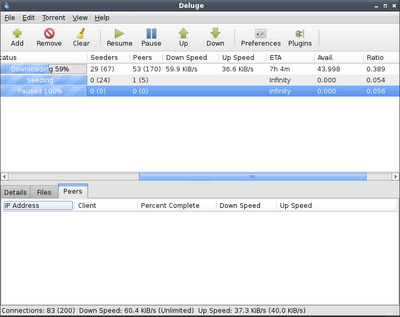
Deluge - A very good Bittorrent client, similar interface to uTorrent.
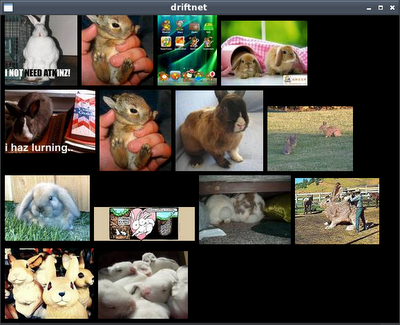
Driftnet - A privacy invasion utility really, allows you to look at images that pass through your network. But it's also useful to save massive amounts of pictures that you view with your browser.
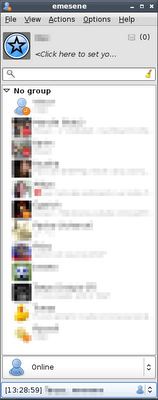
Emesene - A perfect MSN clone, I find it more familiar than Pidgin.
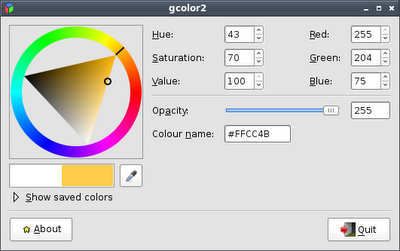
GColor2 - A simple color selection utility useful for designing webpages or openbox themes.
Gmrun - A simple run application.

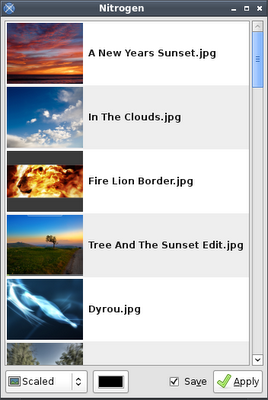
Nitrogen - A wallpaper selection tool, very useful for openbox.
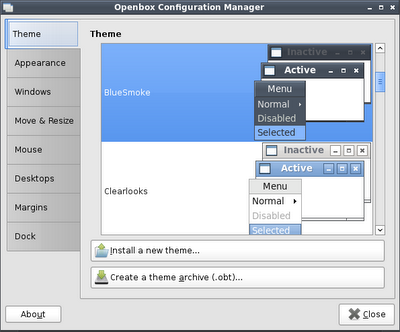
Obconf - Openbox configuration utility.
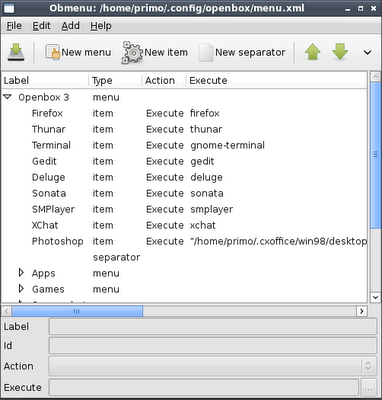
Obmenu - An easy way to configure the openbox menu. Add remove applications with ease, add pipe menus, etc.
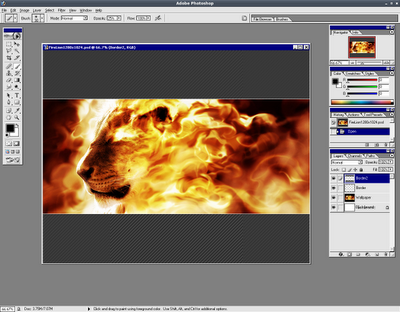
Photoshop - Yes, Photoshop. Why not Gimp? Because Photoshop is a much better application in my opinion. Yes I know the Gimp can do most things if not all of them. The problem is that it's not easy to relearn the interface, shortcuts, etc. There are also a few minor limitations with Gimp which I prefer not to discuss. I run Photoshop 7 through crossover office, it runs alright. There are certain limitations, like slight mouse lag and minor text/menu glitches. However it's usable. For any serious multi-layer work like high resolution flyer design I do it on Windows, because it's not adequate on my aging machine to do it in Linux. Unfortunately :( I've only had Photoshop crash once over the last year.
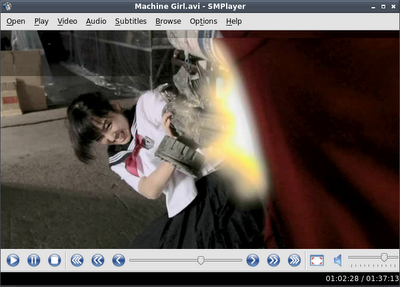
SMPlayer - A great media player, it offers everything and more that Media Player Classic offers on Windows. It uses QTk instead of GTK, but that doesn't stop me from using this great application. VLC is also good, but has no full screen controls and I find the interface lacking & sluggish.
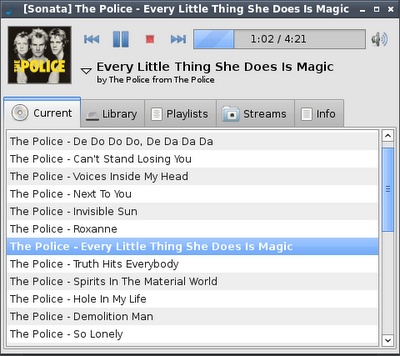
Sonata & MPD - Sonata is a frontend for MPD, which means you can close it or even log out and music will continue playing (You can of course manage this functionality for MPD to stop if Sonata is closed in the settings). You will need to setup and run MPD before you can use Sonata. I find that Sonata is very quick, has a great interface which uses your default icons. I used to use Audacious (a Winamp clone), but I find the interface to be a bit sluggish and the playlist always glitches on minimize.
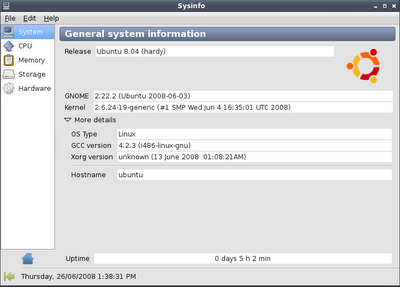
Sysinfo - A program that displays various System Information.
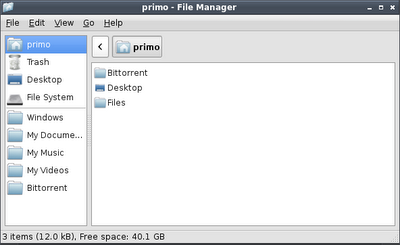
Thunar - An excellent and fast file manager. I would also recommend PCMan.
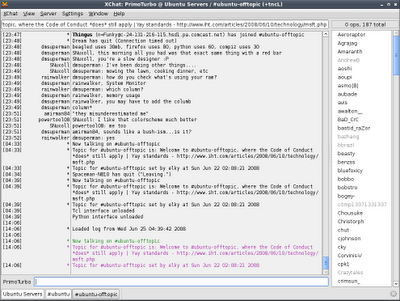
Xchat - Irc chat client, the Gnome version is horrible in my opinion so I use the default one.
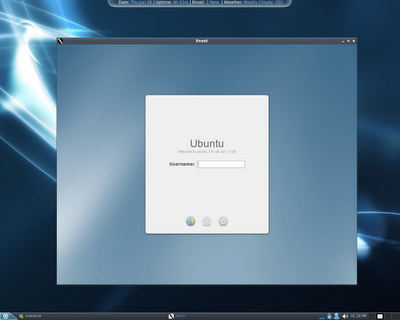
Xnest - This great little utility allows you to login in to your computer in a separate window running a different session. I use it to get gnome shortcut properties and such.
For more applications I suggest you check out GetDeb (for Ubuntu) and take a look at this forum thread, cool applications you use that others might not know of. Furthermore urukrama's openbox guide offers a lot of software suggestions.
Catfish - A great search utility. I find it's better then the one Gnome uses.

Deluge - A very good Bittorrent client, similar interface to uTorrent.

Driftnet - A privacy invasion utility really, allows you to look at images that pass through your network. But it's also useful to save massive amounts of pictures that you view with your browser.

Emesene - A perfect MSN clone, I find it more familiar than Pidgin.

GColor2 - A simple color selection utility useful for designing webpages or openbox themes.

Gmrun - A simple run application.

Nitrogen - A wallpaper selection tool, very useful for openbox.

Obconf - Openbox configuration utility.

Obmenu - An easy way to configure the openbox menu. Add remove applications with ease, add pipe menus, etc.

Photoshop - Yes, Photoshop. Why not Gimp? Because Photoshop is a much better application in my opinion. Yes I know the Gimp can do most things if not all of them. The problem is that it's not easy to relearn the interface, shortcuts, etc. There are also a few minor limitations with Gimp which I prefer not to discuss. I run Photoshop 7 through crossover office, it runs alright. There are certain limitations, like slight mouse lag and minor text/menu glitches. However it's usable. For any serious multi-layer work like high resolution flyer design I do it on Windows, because it's not adequate on my aging machine to do it in Linux. Unfortunately :( I've only had Photoshop crash once over the last year.

SMPlayer - A great media player, it offers everything and more that Media Player Classic offers on Windows. It uses QTk instead of GTK, but that doesn't stop me from using this great application. VLC is also good, but has no full screen controls and I find the interface lacking & sluggish.

Sonata & MPD - Sonata is a frontend for MPD, which means you can close it or even log out and music will continue playing (You can of course manage this functionality for MPD to stop if Sonata is closed in the settings). You will need to setup and run MPD before you can use Sonata. I find that Sonata is very quick, has a great interface which uses your default icons. I used to use Audacious (a Winamp clone), but I find the interface to be a bit sluggish and the playlist always glitches on minimize.

Sysinfo - A program that displays various System Information.

Thunar - An excellent and fast file manager. I would also recommend PCMan.

Xchat - Irc chat client, the Gnome version is horrible in my opinion so I use the default one.

Xnest - This great little utility allows you to login in to your computer in a separate window running a different session. I use it to get gnome shortcut properties and such.

For more applications I suggest you check out GetDeb (for Ubuntu) and take a look at this forum thread, cool applications you use that others might not know of. Furthermore urukrama's openbox guide offers a lot of software suggestions.
Openbox, Pypanel and Netwmpager
So I've been using openbox for the past month and it's definitely my favorite desktop environment so far. While I love gnome I find that it's too bloated, I love the ability to customize openbox with relative ease. Not only is it a lot faster, but it's also a lot cleaner and compact. Recently I installed pypanel after messing with fbpanel, I find both are similar in resources. However fbpanel lacks a little on customization, while at the same time offers a pager. However I added netwmpager as my pager and it's awesome, gives a lot of functionality and customization.
Here is my current openbox desktop:
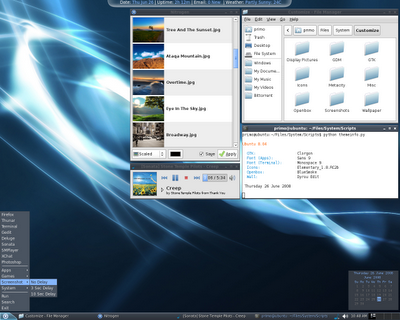
You might be asking yourself, how I have a skinned the taskbar with pypanel. The answer is that I cheated, I edited my wallpaper to include the panel and the background behind conky. Then I made both pypanel and conky transparent.
Here are 2 of the panels (and conky style backgrounds) I have created, they are transparent PNGs so you will need to edit them and add your background behind them. Both are sized to 1280x1024, you will need to resize/move or cut up the files to make them fit on your wallpaper. Both are made from scratch, you are free to do what you want with them. I cannot release the wallpaper versions because the wallpaper are not made by me, but it's easy enough to edit.
Blue Version:

Transparent Green Version

You can download the BlueSmoke openbox theme I created from here. Give me a good rating if you like it :p
The wallpaper that I am using is called Dyrou, it's offered in a number of colors you can download it here.
Here are all my settings, make sure to edit them before using.
~/.pypanelrc
~/.config/netwmpager/config
~/.config/openbox/autostart.sh
~/.config/openbox/menu.xml
~/.config/openbox/rc.xml
~/.conkyrc
~/.conky/gmail.py
~/.conky/weather.sh
~/Files/System/Scripts/dzen_calendar (Taken from urukrama)
~/Files/System/Scripts/themeinfo.py (Taken from dbbolton)
~/.fbpanel/default (unrelated to this theme but I also have a edited fbpanel)
I'm using a GTK theme called Clorgon and the Elementary icon theme.
That should be all, I highly recommend reading urukrama's openbox guide and all of his openbox related postings, very well written and very informative. Also K.Mandla offers a lot of interesting openbox related information. If you want to see some great openbox related screenshots, check out urukrama's screenshots section.
Enjoy :)
Here is my current openbox desktop:

You might be asking yourself, how I have a skinned the taskbar with pypanel. The answer is that I cheated, I edited my wallpaper to include the panel and the background behind conky. Then I made both pypanel and conky transparent.
Here are 2 of the panels (and conky style backgrounds) I have created, they are transparent PNGs so you will need to edit them and add your background behind them. Both are sized to 1280x1024, you will need to resize/move or cut up the files to make them fit on your wallpaper. Both are made from scratch, you are free to do what you want with them. I cannot release the wallpaper versions because the wallpaper are not made by me, but it's easy enough to edit.
Blue Version:

Transparent Green Version

You can download the BlueSmoke openbox theme I created from here. Give me a good rating if you like it :p
The wallpaper that I am using is called Dyrou, it's offered in a number of colors you can download it here.
Here are all my settings, make sure to edit them before using.
~/.pypanelrc
~/.config/netwmpager/config
~/.config/openbox/autostart.sh
~/.config/openbox/menu.xml
~/.config/openbox/rc.xml
~/.conkyrc
~/.conky/gmail.py
~/.conky/weather.sh
~/Files/System/Scripts/dzen_calendar (Taken from urukrama)
~/Files/System/Scripts/themeinfo.py (Taken from dbbolton)
~/.fbpanel/default (unrelated to this theme but I also have a edited fbpanel)
I'm using a GTK theme called Clorgon and the Elementary icon theme.
That should be all, I highly recommend reading urukrama's openbox guide and all of his openbox related postings, very well written and very informative. Also K.Mandla offers a lot of interesting openbox related information. If you want to see some great openbox related screenshots, check out urukrama's screenshots section.
Enjoy :)
Thursday, June 19, 2008
Ubuntu Cd Artwork (5.10 to 8.04)

Here are all the Ubuntu Cds I have ever received, I'm not sure if I'm missing any. Interesting to look at the artwork.
Thursday, June 5, 2008
Ubuntu Hardy Screenshot
Haven't posted in a while, been busy with real life. But anyways here is my current desktop of Ubuntu Hardy.

GTK: Murrine-Colors (Murrine Brave)
Metacity: Shiftie Red Ed
Icons: Elementary 1.8 (Slightly Modified)
Wallpaper: Mupe Bay Dreams

GTK: Murrine-Colors (Murrine Brave)
Metacity: Shiftie Red Ed
Icons: Elementary 1.8 (Slightly Modified)
Wallpaper: Mupe Bay Dreams
Wednesday, December 5, 2007
Future File Management Mockup

I’ve been working on this mockup for a few days now and I’m getting really tired of it so I figure I would post it before I abandon making it.
My idea that I have never seen implemented in file management is called pathview or perhaps webview. Maybe it’s already out there but I have never seen it, I think it would be quite revolutionary and genuinely useful if ever implemented.
Pathview/webview: All files are presented in a single window; the user is able to move around the files like in an RTS game or Google Earth. An excellent example of this implementation would be the game Defcon. The user is able to zoom in and zoom out and follow the mini-map in order to locate files.
Organization: Essentially you could create areas for files, like a map. It could be based on the world, planets or anything else. You can move files around by dragging them to different areas with out actually changing their position in the file system. It simply makes no sense that we have to follow the organization of our operating system in order to locate files. The line paths would still indicate the original location of the files in the file system even if the files are placed in other parts of the map.
File movement (not in the mockup): One problem with pathview could be moving large amounts of files. To speed this up, the user has a special tool. A temporary folder or basket, which allows the user to place files into this area temporally. Then move into another part of the map and move the files into that area by dragging them out of the basket. This is similar to the way that RPG games implement item management.
Folder icons and trash icon used in the mockup are called iVista.
Monday, November 26, 2007
Hammer and Sickle
Here is a Hammer and Sickle Soviet based wallpaper I made.

The context of this wallpaper is that I'm in the middle of watching PU-239. The film is about nuclear material going missing from the former Soviet Union, interesting movie so far.

The context of this wallpaper is that I'm in the middle of watching PU-239. The film is about nuclear material going missing from the former Soviet Union, interesting movie so far.
Saturday, November 17, 2007

Thursday, August 30, 2007
Ubuntu Wallpapers Collection
Here is a collection of Ubuntu based wallpapers that I have done. Click on each image to view a larger version.


Here are some photographs that I took with my Kodak 2 Megapixel camera.


You can find a mirror of all these wallpapers at my deviantART page.


Here are some photographs that I took with my Kodak 2 Megapixel camera.


You can find a mirror of all these wallpapers at my deviantART page.
Subscribe to:
Comments (Atom)